Troubleshooting and bug reports
Most messages in Atlasmith say what to do next. This page explains the common ones, and how to send a bug report when something really goes wrong.
Report bug
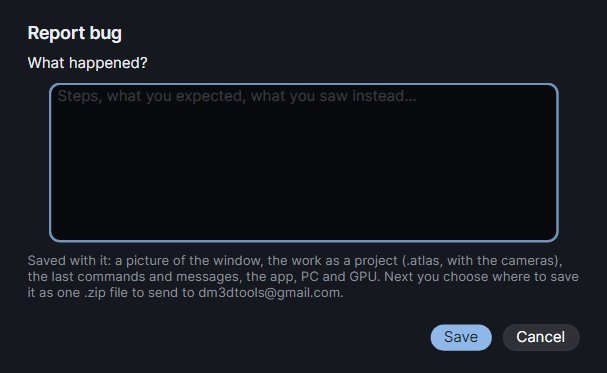
Found a bug? The Report bug button (the beetle at the right of the top bar, or Ctrl+K > "Report bug") collects everything needed to reproduce it in one zip file.
- Click Report bug right after the problem happens, before you change anything.
- Describe it in the dialog: the steps, what you expected, what you saw instead.
- Click Save. Atlasmith saves a picture of the window, your work as a project, and a report with your note, the app version, your system (Windows, CPU, RAM, graphics card and driver), the mesh numbers and the last actions and messages.
- A save dialog asks where to put the
.zip(the Desktop by default). The status line then offers Open folder. - E-mail the zip to dm3dtools@gmail.com.
The report includes your mesh as a project file. It never includes your license key. If a job is running, the report is still written, without the project. Report bug works in view-only mode too.
If Atlasmith crashed, the details are in %APPDATA%\Atlasmith\crash.log. The next bug report adds it to the zip by itself.
Getting help
- Discord: ask questions, share results and suggest features on the community server, discord.gg/pJfVRhNkVX.
- E-mail: dm3dtools@gmail.com, also linked in the side panel's footer and in About.
Common messages
"This piece is closed - cut seams first (C), or use Select seams"
You pressed U on a closed part with no seam and no open border, like a sphere or a closed head. Nothing changed. Cut at least one seam (2, select edges, C), or let Select seams propose them, then U.
"This piece has a handle (a loop through it) - cut it first (C), or use Select seams"
The piece has a border, but a loop runs through it that no seam cuts: a mug's handle, a ring with a short slit, a strap joined at both ends. Cut once across the handle, then U.
"… did not unfold to any usable map - add a seam (C) where it folds"
Even the best map for this piece is unusable. Add a seam where the surface folds over itself, or use Select seams.
Red triangles after U
"Unfolded with N flipped / M overlapping triangles on K pieces - add a seam (C) where marked red". The piece was unfolded, but it needs one more seam to lie flat without overlaps. The red marks show where: cut there and U again. A typical case is a tube cut around but not along its length. See When a piece cannot lie flat.
"N islands are locked: L unlocks"
The command skipped locked islands. Select them and press L to unlock, if you meant to change them.
The keys say "preparing"
Right after a large mesh opens, the selection tools are built in the background. Wait a moment. Meshes over 20 million triangles do not prepare them until needed: simplify first, or use Prepare the selection tools in the Options tab.
Result - changed
An option changed since the last run, so the shown result was made with the old options. Run the step again, or press Ctrl+P when only the size, the padding or the bake options changed.
The UDIM label is orange
Some islands lie outside the UDIMs you chose. Raise the UDIM count, or press P to pack them back in.
Greyed buttons
A greyed button, menu item or option is never a dead end: hover it and its tooltip ends with an orange Greyed: line that says why. Common reasons:
- open a mesh first;
- needs UVs: unfold (U) or Auto unwrap first;
- Edge mode only - press 2, and other mode requirements;
- needs a high-poly - Load high-poly… for the Bake;
- pick one island first;
- View only: saving, exporting and baking need a license (see View only).
If you run a greyed command from its key or from Ctrl+K, the status line gives the same reason.
Also check that what you want to change is not hidden or locked: commands never touch hidden or locked islands. Y shows everything.
Big meshes and memory
Atlasmith is made for sculpts and scans of millions of triangles, but RAM still matters. Some tips:
- Simplify early. After a Simplify the original is moved out of RAM to a temporary file on disk, and read back only for the bake.
- That temporary file needs free disk space, about twice the mesh's size. Keep some room free on your system drive.
- Meshes over 20 million triangles open without the selection tools, to save memory and time; they are built for the low-poly after a Simplify.
- Save your work as an
.atlasproject: it is much smaller than the OBJ and opens faster. - Close other heavy programs (a sculpting app with the same model open, a browser with many tabs) during a big Simplify or bake.
Atlasmith is built to use many CPU cores; a processor with 8 cores / 16 threads or more is recommended for large sculpts.
Cancelling a job
Every long job (U, O, Auto unwrap, Select seams, Simplify, Pack, Bake, Rectangularize, opening a mesh) shows a progress bar with Cancel. Press Esc or click it: the window answers at once, and everything is exactly as before the job.
A few steps cannot stop instantly; they finish quietly in the background ("Finishing the cancelled job…"), and anything you press meanwhile runs right after. Once a result is in and only the views are being drawn, it is too late to cancel: the result is shown, and Ctrl+Z undoes it.
Other questions
Windows warns when I run the Setup
The installer is not code-signed yet. Click More info > Run anyway. See Install.
The model is lying on its side
The up axis guess was wrong: Alt+Z flips Y / Z. It only changes the view, never your exported coordinates.
My exported normals look smooth, but the file had hard edges
The file's normals are kept only when they fit the faces. A Simplify makes a new mesh with new smooth normals. For models exported as separate panels, try Keep panel borders hard with Repair mesh.
The UVs do not match in ZBrush
Keep Keep polygons (quads whole) on in the Unwrap card, so no seam cuts through a polygon and the topology stays the same.