4 · Unwrap
U unfolds the regions between your seams into flat islands and relaxes them to the end. One key, and the result is final: no extra relax pass needed.
Unfold with U
U works on, in this order:
- the selected islands;
- else the island under the mouse;
- else everything that was cut or is not flat yet.
The unfold happens in place: every other island stays exactly where it is. Only Pack lays islands out. The one exception is the first U on a mesh with no layout at all, which lays its islands out once.
When you unfold several islands together, they come out at one texel density (their average), each scaled about its own centre. Locked islands and islands with hidden polygons are left out.
You will find Unfold (U) in the Unwrap card, on both edit bars, in the right-click menu and in the radial menu.
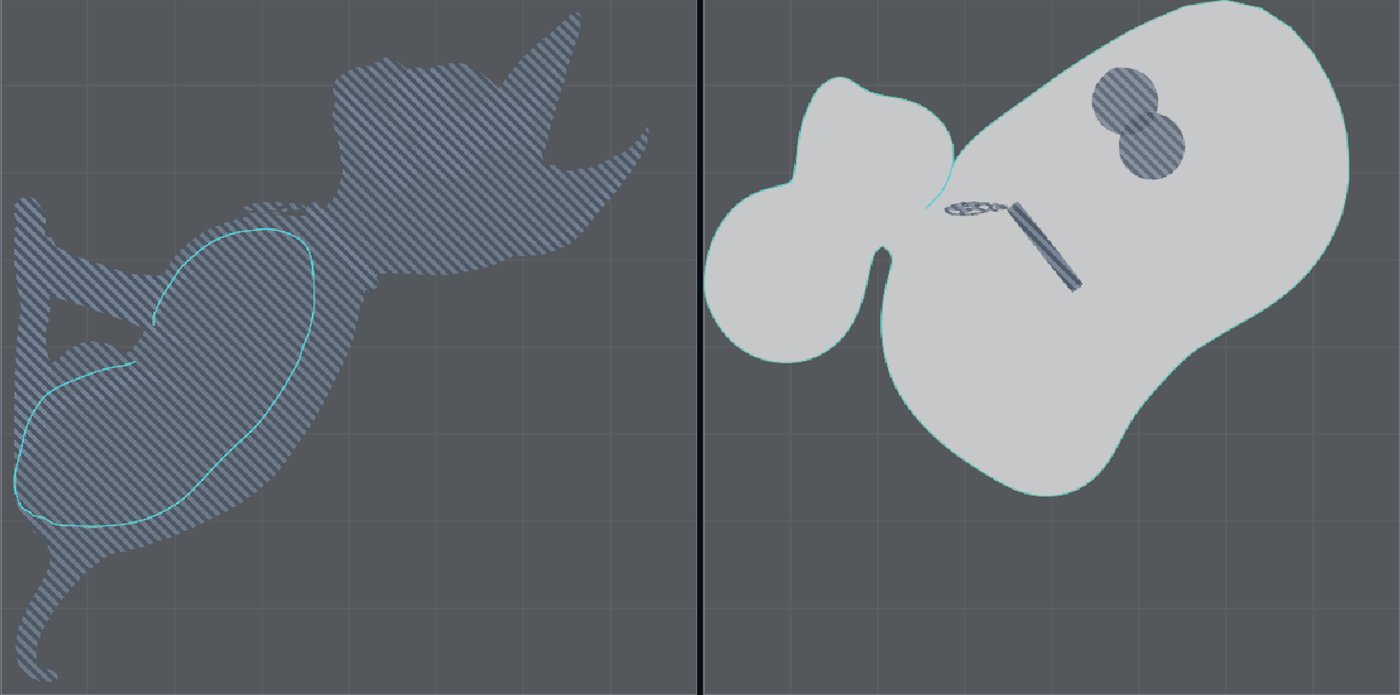
Not flat islands
After a cut or a weld, the touched islands are not flat: they keep their old UVs until you unfold them. The UV view draws them in a darker striped slate, the status line counts them, and the Unwrap card's chip reads N not flat. Press U to unfold them.
To look at one kind only: Ctrl+H shows the flat islands, Shift+I the not-flat ones, Shift+Alt+I both.
U never adds a seam
U unfolds each region between your seams as one island, whatever its size or stretch. A disk, a sleeve or a plate with holes is never split behind your back. If a region needs another cut, Atlasmith tells you, and you decide where it goes.
If you want Atlasmith to decide the seams, use Select seams or Auto unwrap.
When a piece cannot lie flat
Applied anyway, marked red
Some pieces have the right shape but no clean flat map, for example a long tube cut once around but not along, or an arm without its seam. U still unfolds them with the least-bad map it finds and marks the problem triangles red in both views. The status line says:
Unfolded with N flipped / M overlapping triangles on K pieces - add a seam (C) where marked red
Add a seam where the red is and press U again; the marks go away once the piece is clean. Ctrl+Z also clears them (it brings back the old layout).
Left as it is
A piece that cannot lie flat at all stays exactly as it was, and the status line says why:
| Message | What to do |
|---|---|
| This piece is closed - cut seams first (C), or use Select seams | A closed part with no seam and no open border (a sphere, a closed head). Cut at least one seam. |
| This piece has a handle (a loop through it) - cut it first (C), or use Select seams | A loop runs through the piece that no seam cuts (a mug's handle, a torus with a short slit). Cut across the handle. |
| … did not unfold to any usable map - add a seam (C) where it folds, or use Select seams | Even the best map is unusable. Add a seam where it folds. |
With several islands selected, the others still unfold; the warnings come first in the same status line.
Unwrap options
| Option | What it does |
|---|---|
| Max stretch | How much distortion is acceptable (default 1.15; 1.00 is none). Shared with Select seams' By stretch and Auto unwrap. Islands over it show in red in the Result. |
| Fill holes | On by default. Holes inside an island (the inside of a letter O, an eye, a mouth) stay open and round instead of being squeezed into a thin lens. The caps it uses are temporary and never reach the mesh or the export. Also gives a cleaner result for a tube cut once around. |
| Keep polygons (quads whole) | Seams follow the edges of the input's quads and n-gons and never cut through a polygon. Needed to take the UVs back to ZBrush with the same topology. |
| UVs from file… | Take UVs from another file instead of unwrapping (below). |
Relax in place (O)
O relaxes the selected islands (else all) from their UVs as they lie, without unfolding them again: their shape, rotation and pins are kept. Use it after you changed islands by hand (brushes, drags, Straighten) or on UVs that came from a file. It is on the key, in Ctrl+K and in the right-click menu. Island ▾ also has Relax this in place and Relax all, then pack.
Right after a U there is nothing left to gain: U is already fully relaxed.
Pins, held edges and unflatten
| Key | What it does |
|---|---|
| Alt+P | Pin the vertices of the selection (red dots). U and O keep pinned vertices exactly where they are. |
| Del | Unpin the selection (nothing selected: every pin). |
| Alt+T / Alt+V | Hold the selected edges horizontal (red) or vertical (blue). U and O straighten them. |
| Alt+Shift+C | Free the held edges (none selected: all). |
| Shift+R | Unflatten: put the selected or hovered islands back to their 3D shape (projected flat). They show red until U unfolds them again. |
Pins and held edges stay with the mesh across new results and are saved in the project.
UVs from a file
UVs from a file… (Unwrap card, or Open ▾ UVs from a file of this mesh…) takes the UVs of an OBJ, FBX or Alembic file of the same mesh (same vertices and faces) instead of unwrapping. Then repack, edit seams or export as usual.
A typical use: simplify and export the low-poly, UV it in another program, bring its UVs back here and Re-bake (Ctrl+P).
Undo
Each U is one Ctrl+Z step. Undo right after an unwrap brings the earlier layout and seams back. Cut + unfold is also one step: one undo puts both the cut and the layout back.