Hide, isolate, lock and groups
Hide what is in the way, isolate what you are working on, lock what is finished. Hidden and locked islands are never changed, so you can work on one part of a big model in peace.
Hide and isolate islands
| Key | What it does |
|---|---|
| H | Hide the selected islands (or the island under the mouse). |
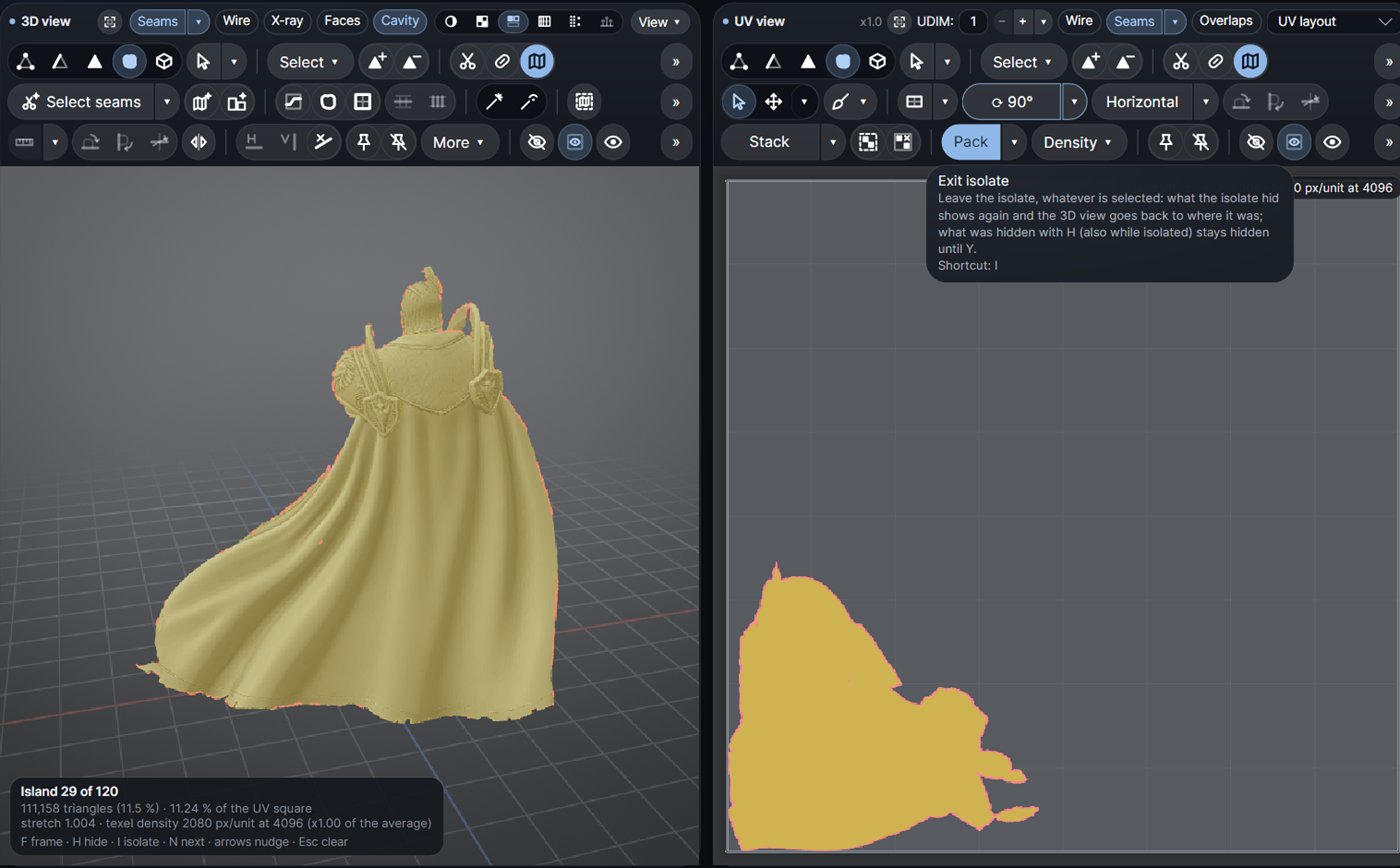
| I | Isolate them: every other island is hidden and both views frame what is left. Press I again to leave. |
| Y | Show everything (and end an isolate). |
| Shift+Alt+H | Auto isolate: hide every island without a selected edge. |
In Vertex and Edge mode, the islands the selection lies on count; in Polygon mode, the islands of the selected polygons. The buttons are on both edit bars (Hide, Isolate, Show all) and in the right-click menu.
Hide and isolate polygons
To hide only part of an island, use the polygon keys:
| Key | What it does |
|---|---|
| Alt+H | Hide the selected polygons (Vertex / Edge mode: the polygons at the selection). |
| Alt+I | Isolate them; again to leave. |
| Alt+Y | Show the hidden polygons again. |
An island partly hidden this way keeps just its shown part in the UV view, with its outlines and seams.
Hidden means untouched
Every command acts on the visible parts only. What is hidden is never selected, cut, welded, moved, unfolded, packed, pinned or measured. An island with any hidden polygon is left exactly as it is, and the status says so.
- U, O, Re-pack and Auto unwrap keep hidden islands' UVs and their place; the visible islands are unwrapped and packed round them.
- Hidden islands take no room in a pack: packed islands may lie over them.
- Select seams only proposes seams for what is shown.
- The Result's % packing and UDIM coverage count only shown islands; the other numbers (islands, stretch, flips) are of the whole layout, as it is exported.
To redo just one part: isolate it (I), change its seams, unwrap. Everything else stays exactly as it was.
How isolate behaves
- Isolate is one toggle from every entry point: I, Alt+I, Auto isolate, the bars, the right-click menu, Ctrl+K. While isolated, the button is lit and reads Exit isolate.
- Leaving shows exactly what showed before: what was hidden stays hidden and comes back only with Y. Both views' cameras go back to where they were.
- H while isolated hides more, and that stays hidden after the isolate. If you hide everything, the views may be empty: I leaves the isolate, Y shows everything.
- Cuts, welds, U, O and P made while isolated keep the isolate.
- Visibility is not an undo step.
- A project saved while isolated opens isolated. A new result of the same mesh keeps what is hidden; opening another mesh shows everything.
Lock
L (or Lock on the UV bar) locks the selected islands; press it again to unlock. A locked island stays exactly where it is:
- No move, turn, scale, drag, nudge, typed transform, align, fit, unfold, relax, straighten, rectangularize, texel density change, UDIM move, stack or brush changes it.
- Pack leaves it in place and packs round it. Auto unwrap does not cut, unfold or move it.
- A cut or weld elsewhere keeps every lock; the pieces of a cut locked island stay locked.
A locked island shows as a darker solid clay with a small padlock in the UV view and in the island card, and the Lock button is lit while the picked island is locked. When a command skips locked islands, the status says "N islands are locked: L unlocks". Ctrl+Z undoes a lock.
Groups
Group islands that belong together, so they move, turn and pack as one block.
| Key | What it does |
|---|---|
| G | Group the selected islands. |
| Ctrl+G | Ungroup them. |
| Shift+Ctrl+G | Group islands that overlap. |
| Alt+G | Stack similar islands and group them. |
A group with a locked island is locked as a whole: every member shows the padlock, and L on any member unlocks the group. Groups and locks are saved in the project.
Pins
Pins hold single vertices in place during U and O: Alt+P pins the selection, Del unpins. See Unwrap: pins.