1 · Simplify
Simplify turns a sculpt of millions of triangles into a light low-poly before any UV work. The original stays available for the bake, so you can unwrap the low-poly and bake the sculpt's detail back onto it.
When to use it
- You have a sculpt or a scan and need a game- or render-ready low-poly with baked maps.
- The mesh is too heavy for the program you will take it to next.
Skip it when you already have your low-poly or retopo: open that mesh and go straight to Seams. You can still bake onto it from a sculpt file, see Bake.
Simplify a mesh
- Open the Simplify card in the Workflow tab.
- Pick the Mode: Triangles or Quads (see below).
- Type the Target, in triangles (or quads) or in % of the loaded mesh. The field starts at the mesh's own count, so lower it; the card shows what the target comes to.
- Click Simplify. A progress bar shows; Esc cancels.
The 3D view now shows the low-poly (turn on Wire to see its edges). Undo simplify goes back to the loaded mesh. If the mesh already has UVs, Simplify asks first, because a new mesh drops the UVs and any baked maps.
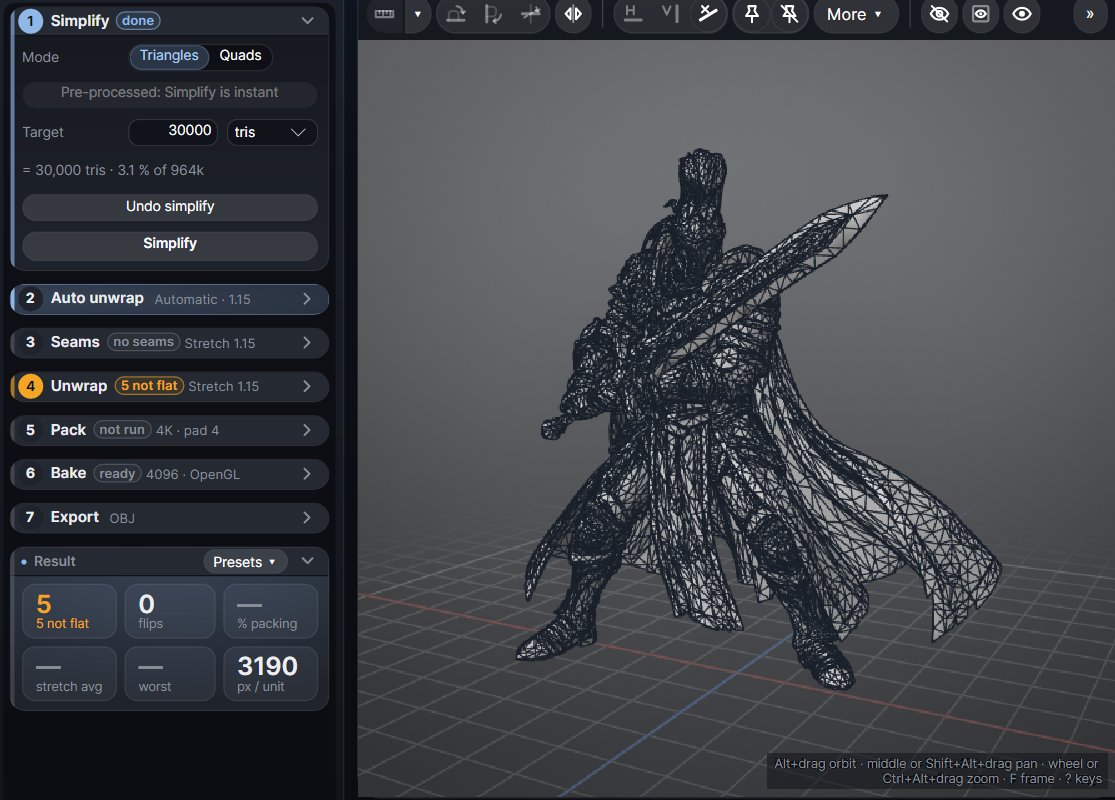
Triangles or Quads
| Mode | What you get | Best for |
|---|---|---|
| Triangles | The closest low-poly for a given count: dense where the detail is, light where the surface is plain. | Baking. This is the default at every start. |
| Quads | An automatic quad remesh: an all-quad low-poly of about the given count, with even quads and edge loops that follow the forms. The count lands within about 2 % of the target. | A clean base mesh, models you will keep editing or subdividing. |
Quads trade some accuracy for clean loops: thin parts smaller than one quad (ears, tassels, spikes) get rounded off and hard edges softened. For a bake of very detailed forms, Triangles stays the better low-poly at the same count.
In Quads mode the Mesh line and the card show the number of quads and poles; the Wire overlay shows the quads, and OBJ and FBX export write them as quads. A model exported as separate panels is joined where corners meet, so the quads run across those cuts instead of leaving slits.
The mode can also be switched with Ctrl+K > "Simplify mode". A project keeps its own mode.
Pre-process: instant targets
The first Simplify also does a pre-process: it simplifies the mesh once down to a low floor and remembers every step on the way. After that, any target from that floor up to the full mesh is made almost at once, so you can try 50k, 200k and 500k and compare them in seconds. The button then reads Pre-processed: Simplify is instant.
You can also run Pre-process on its own from the card's first row, for example while you think about the target. The result is as good as a simplification straight to that count. Opening another mesh drops the pre-process.
On a sculpt of a few million triangles the pre-process takes a few seconds; on a 50M-triangle sculpt, a few more. After that, each new target is close to instant.
The original and the bake
The loaded mesh is kept as the bake's high-poly, but out of RAM: Atlasmith writes it to a temporary file on disk and reads it back for the bake, so a giant sculpt does not hold memory while you work on the low-poly. The file is removed afterwards.
If you had loaded a separate high-poly file for the bake, Simplify sets it aside (the confirmation says so): the mesh you simplified becomes the bake source. Undo simplify makes the file the bake source again.
Things to know
- Simplify works on the whole mesh, hidden parts too.
- The low-poly gets new smooth normals. The file's hard edges do not carry over.
- If the mesh needs repair (split corners, cracks), run Repair mesh before simplifying: the low-poly comes out cleaner. See Mesh check and repair.
- Meshes over 20 million triangles open without the selection tools ready, to save time and memory. Simplify first and the tools are prepared for the low-poly, or ask for them with Prepare the selection tools in the Options tab.
- Export… can write the low-poly on its own, before any UVs.