2D editing and transform
The UV view is more than a preview: move, turn and scale islands, straighten edges, square up strips, stack identical pieces and paint with UV brushes. Everything is live, and every step is one Ctrl+Z.
What gets moved
The 2D tools act on the selected islands, or on the island under the mouse. In Island and Element mode whole islands move. In Vertex, Edge and Polygon mode only the selected part's UV vertices move (a vertex, the two ends of an edge, a polygon's corners), with an optional Soft radius that takes the vertices around them along.
Locked islands never move. See Lock.
The Transform tool
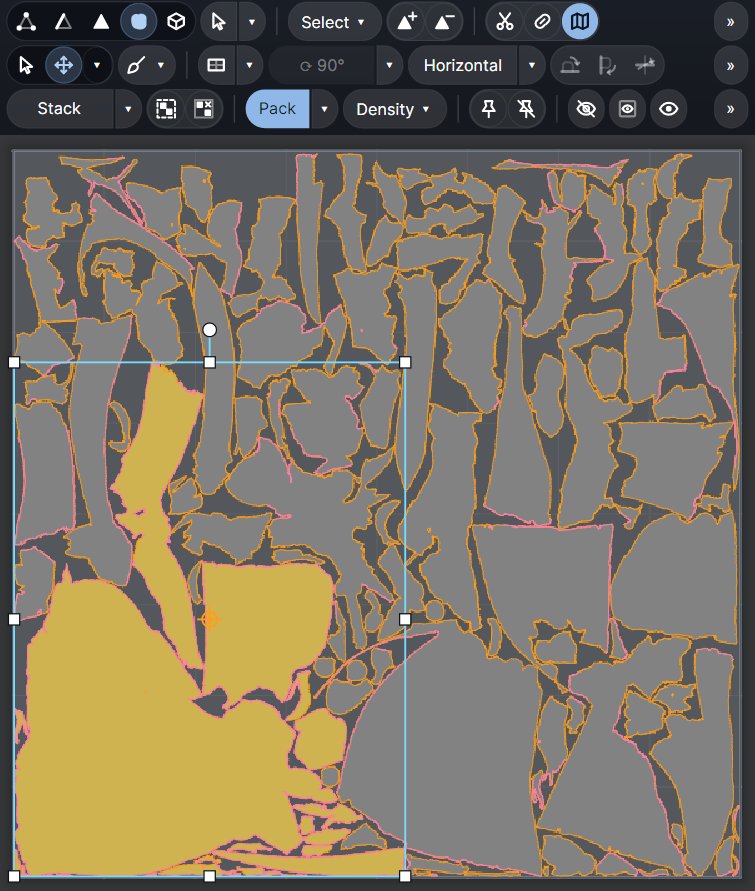
Press F5 (or Tab, which toggles it with the Select tool Q). A box with handles appears round the selection. A strip at the top left of the UV view shows the current tool and switches it.
| Drag | Does | With a key |
|---|---|---|
| inside the box | move | Shift: along U or V only |
| a corner | scale evenly | Shift: each axis on its own; Alt: about the box centre |
| a side | stretch one axis | Alt: about the centre |
| the knob above, or just outside a corner | turn | Ctrl: 15° steps |
| the orange crosshair | move the pivot | snaps to the box's corners, sides and centre |
A click on another island takes it (Ctrl adds). A new selection always has its pivot at the centre of its UV box; a pivot you moved belongs to that selection and follows it through moves, turns and undo.
Typed transforms (Xform ▾)
The ▾ next to the Transform tool opens the typed values:
- Move U / V, Turn (with +90, −90 and 180 buttons) and Scale %.
- Pivot: box centre (the default), UDIM centre, UV origin, a typed point, or Pick in the UV view.
- Each island: turn and scale each island about its own pivot instead of as one block.
- Snapping for the drags: 1/16 UDIM or texels, 15°, 5 %.
- Soft radius (px) for the part moves.
The values stay while the card is closed, for the session.
Quick moves with the mouse and keys
| Input | Does |
|---|---|
| Ctrl + drag | move the selected or hovered islands |
| Space + left / middle / right drag | move / turn / scale the selected islands |
| D + drag | the same for the island under the mouse |
| arrows | nudge one texel (Ctrl: a grid step of 1/16 UDIM; Shift: a whole UDIM) |
| Ctrl+Shift+arrows | move to the neighbouring UDIM |
| Ctrl+PgUp / Ctrl+PgDn | turn 90° left / right (Ctrl+Shift+PgUp: 180°) |
| Alt+R | repeat the last action |
A run of nudges or turns is one undo step.
Island ▾
For the picked island (the one you clicked last). A small card at the top right of the UV view names it with its stretch and texel density.
- Turn 90° either way, Flip U, Flip V.
- −10 % / +10 %: change its texel density. Re-pack keeps the new size relative to the others.
- Fit to UDIM (Alt+B) and Squarify to UDIM (Shift+B).
- Pack the rest and Pack only this.
- Move to UDIM…
- Relax this in place and Relax all, then pack.
Align ▾
- Horizontal (Shift+H) / Vertical (Shift+V): turn islands along their long axis.
- Align edge horizontal / vertical / to the nearest axis (Ctrl+Alt+H / V / N): in Edge mode, each island with a selected edge turns as one rigid piece until that edge lies along the axis. Pick the edge in 3D or 2D. Pack with Shift+P to keep the turn.
- Align left, right, top or bottom, centre U / V, and spread (distribute) along U / V.
Straighten and Rectangularize
| Command | Key | What it does |
|---|---|---|
| Straighten edges | Ctrl+Shift+A | Lines the selected edges up in UV. |
| Parallelize edges | Alt+W | Makes the selected edges parallel. |
| Rectangularize | Ctrl+Shift+W | Each selected island becomes one rectangle. |
| Rectangularize horizontally / vertically | Ctrl+Shift+H / V | The same, the long side along U / V. |
| Unfold along U / V | Relaxes the islands along one axis only; every vertex keeps its other coordinate. |
Rectangularize on a strip or panel of quads gives an exact grid: every row and column a straight line, spaced by the real 3D lengths of its edges, so a belt, a strap or a trim sheet piece textures without distortion. On any other island it picks 4 corners on the border (the sharpest turns, or the vertices you selected), sets the sides at their 3D lengths and relaxes the inside. An island that is closed, has holes or is too far from a rectangle is left as it was, with a message.
The straighten commands need an edge selection and are on the 3D bar's Straighten ▾ too. Rectangularize is the UV bar's Rectangularize ▾.
Stack and group
Identical pieces (buttons, bolts, teeth, the two halves of a symmetric model) can share the same texture space. The UV bar's Stack ▾:
| Command | Key | What it does |
|---|---|---|
| Stack similar | Shift+C | Puts islands like the selected one on top of it. |
| Stack and group | Alt+G | Stacks them and groups them, so they move and pack as one. |
| Group / Ungroup | G / Ctrl+G | Groups the selected islands, or splits a group. |
| Group overlapped | Shift+Ctrl+G | Groups islands that overlap. |
The menu also has the island selections: similar, overlapping, flipped and small islands (see Selection).
UV brushes
Brushes reshape the UVs with a left drag in the UV view, like sculpting in 2D. Pick one with its key or the Brushes button; [ / ] change the size and Q goes back to the Select tool.
| Key | Brush | What it does |
|---|---|---|
| F6 | Unfold | unfolds the UVs under the brush |
| F7 | Optimize | relaxes them |
| F8 | Density | makes the texel density larger (Ctrl: smaller) |
| F9 | Pin | pins vertices (Ctrl: unpins) |
| F10 | Protect | protects vertices from the other brushes (Ctrl: frees them) |
| F11 / Ctrl+F11 | Spread / Pinch | pushes the UVs apart / pulls them together |
| F12 | Drag | drags the UVs along |
Pinned and protected vertices stay put, and no dab ever flips a triangle. One stroke is one undo step. Size and strength are in Options > UV brushes. After brushing, O (Relax in place) smooths the result while keeping the shape.