Options and settings
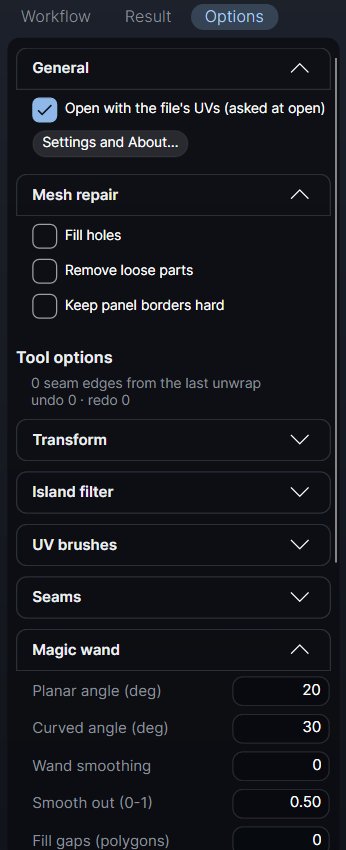
The Options tab holds the tools' options and your preferences. The options of the work itself (simplify, seams, unwrap, pack, bake, export) live in their Workflow cards; see each step's page.
The Options tab
The tab is made of folding sections. Which ones are open is remembered.
| Section | What is in it |
|---|---|
| General | Open with the file's UVs (asked at open), and Settings and About…. |
| Mesh repair | Fill holes, Remove loose parts, Keep panel borders hard. See Mesh check and repair. |
| Transform | A link to the typed move / turn / scale, pivot, snapping and soft radius (the UV bar's Xform ▾). See The Transform tool. |
| Island filter | Islands under (triangles) and Select: selects every island smaller than that, slivers you may want to weld. |
| UV brushes | Size (px on screen), Strength (0-1) and Off (Q). See UV brushes. |
| Seams | Seam options… opens the Seams card with every seam option. See Seams. |
| Magic wand | Planar angle, Curved angle, Wand smoothing, Smooth out, Fill gaps, Wand across seams, Local angle view (purple), Wand gizmo at the pointer. See Magic wand. |
| Edge loop, path, sharp, symmetry | Sharp angle, Symmetry, Box / lasso: ignore back faces, Paths follow sharp edges, Path straightness and the loop limits. See Edge loops, rings and paths. |
| Interface | Animations and Radial menu (hold Z) (below). |
| License · updates | The license state, License… and Check for updates…. See Install and license. |
Settings and About
Settings and About… (Options > General, the keys map's button, or Ctrl+K > "Settings") holds the settings that are not options of the work:
- UI density (Interface): Compact (the default: a dense layout for a Full HD screen) or Comfortable (larger text, buttons and side panel). It applies after a restart.
- Up axis (General): Auto, Y up or Z up for the 3D view. See Background and up axis.
- Animations and Radial menu (Interface), the same as in the Options tab.
- Every shortcut explained, the version, the graphics card in use, the license and updates, the third-party licenses, and where the settings and the crash log are kept.
Animations
On by default. Small, fast moves that never hold up the work: buttons ease their colours, menus and tooltips fade in, the Result numbers count up, framings glide. A click, the wheel or a drag during a glide stops it at once. Turn it off and everything changes instantly.
Radial menu
On by default. Hold Z over a view for a ring of eight tools round the pointer, handy with a pen. See Right-click menu and radial menu.
What is remembered
Every start uses the same defaults, so the app always behaves the same way when you open it. That covers the view toggles (Seams, Wire, X-ray, Faces, Cavity, checker cells, background, swapped views), the selection mode and tool, Crossing / Window, symmetry, the typed transform values and every Workflow card's options.
Only deliberate preferences are remembered:
- everything in the Options tab, including which sections are open;
- Open with the file's UVs (also your answer to "Use the UVs in the file?"), the up axis, UI density, Animations, Radial menu, Check for updates;
- the magic wand's angles and settings, the Sharp angle, Box: ignore back faces, the path and loop options;
- your customized bars;
- the window size and place, the side panel's width, the recent files.
A project (.atlas) keeps its own options, view and selection, and restores them when you open it. Opening a project never changes the next start.
Where Atlasmith keeps its files
| What | Where |
|---|---|
| Settings and recent files | %APPDATA%\Atlasmith |
| Crash log | %APPDATA%\Atlasmith\crash.log |
| License state | %LOCALAPPDATA%\Atlasmith |
| Bug reports (Setup) | %LOCALAPPDATA%\Atlasmith\BugReports |
| Bug reports (portable) | a BugReports folder next to the unzipped folder |
Uninstalling leaves these in place, so a reinstall keeps your preferences.